
ILM Chat & Order for WhatsApp for PrestaShop (Free)

1.0.0
Free
Free download • No licence key • Nothing locked
30-Day Money Back
Free Updates
Dedicated Support
Compatibility
PS Compatibility: 1.7.0 – 9.x
PHP Version: PHP 7.1+
Share:
Also on: PrestaShop Addons PS Addons

Let shoppers reach you on WhatsApp in one click

ILM Chat & Order for WhatsApp adds a WhatsApp chat button to your PrestaShop store and an Order on WhatsApp button to your product pages and cart. A click opens WhatsApp on the shopper's phone or computer with your message already written: the product, the chosen size or colour, the quantity and the price. It is free, with no licence key, no watermark and nothing locked.

A chat button with your whole team

Add as many agents as you like, each with a name, a role, a photo and their own pre-filled message. Shoppers pick the right person: sales, delivery, returns.

  • Unlimited agents, drag to reorder
  • Online and offline status from your business hours
  • Greeting bubble after a few seconds or on scroll
  • Your colours, icon, position and texts
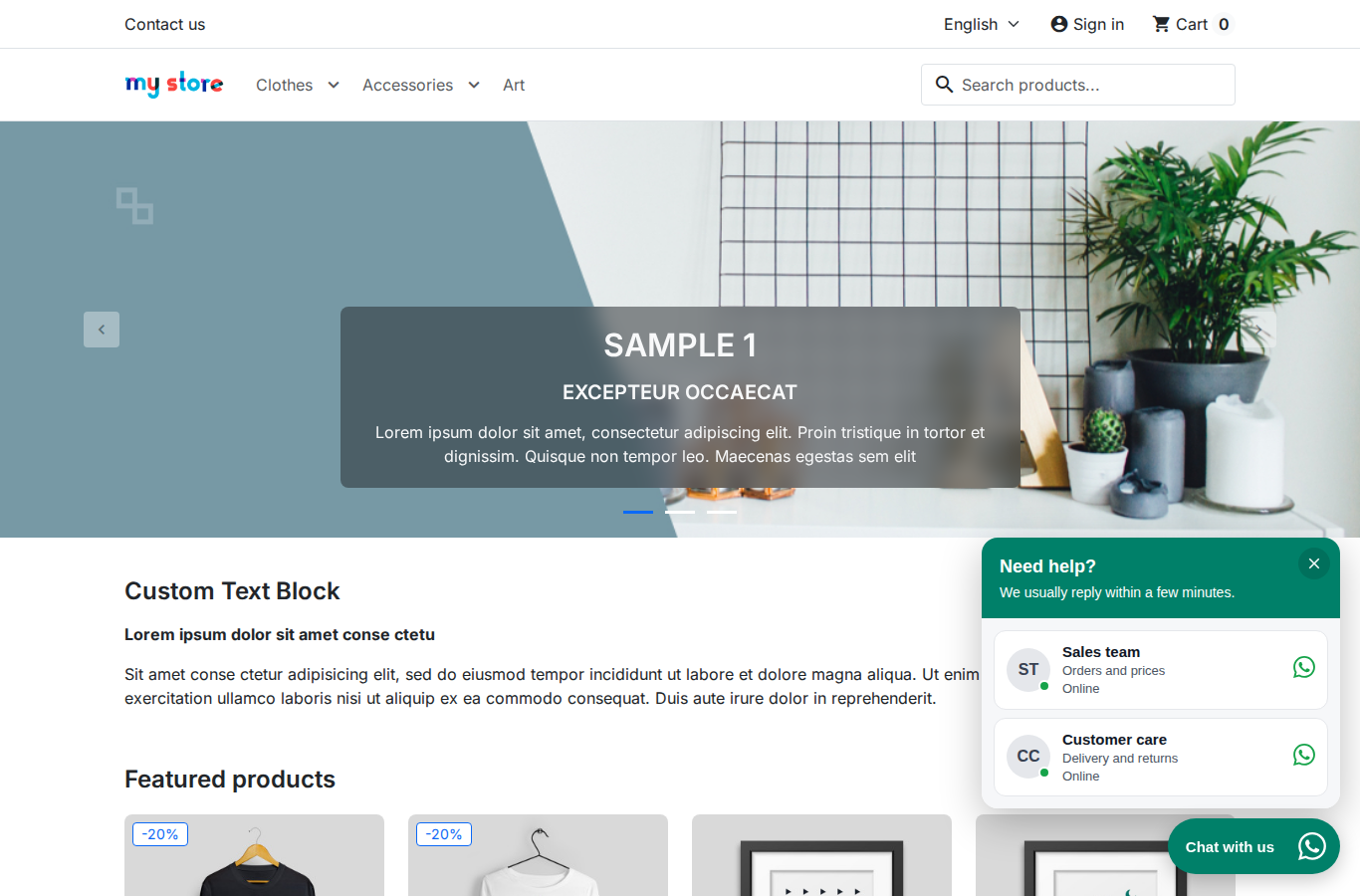
WhatsApp chat window with two agents on the shop's home page

Order on WhatsApp from the product page

Shoppers who prefer to talk before they buy send you the order in one click. The message follows the combination and quantity they chose, at the moment of the click.

  • Order on WhatsApp: product, combination, reference, quantity, price, link
  • Ask about this product, with the product link
  • Share on WhatsApp to a friend
  • Subscribe button to your WhatsApp channel or group
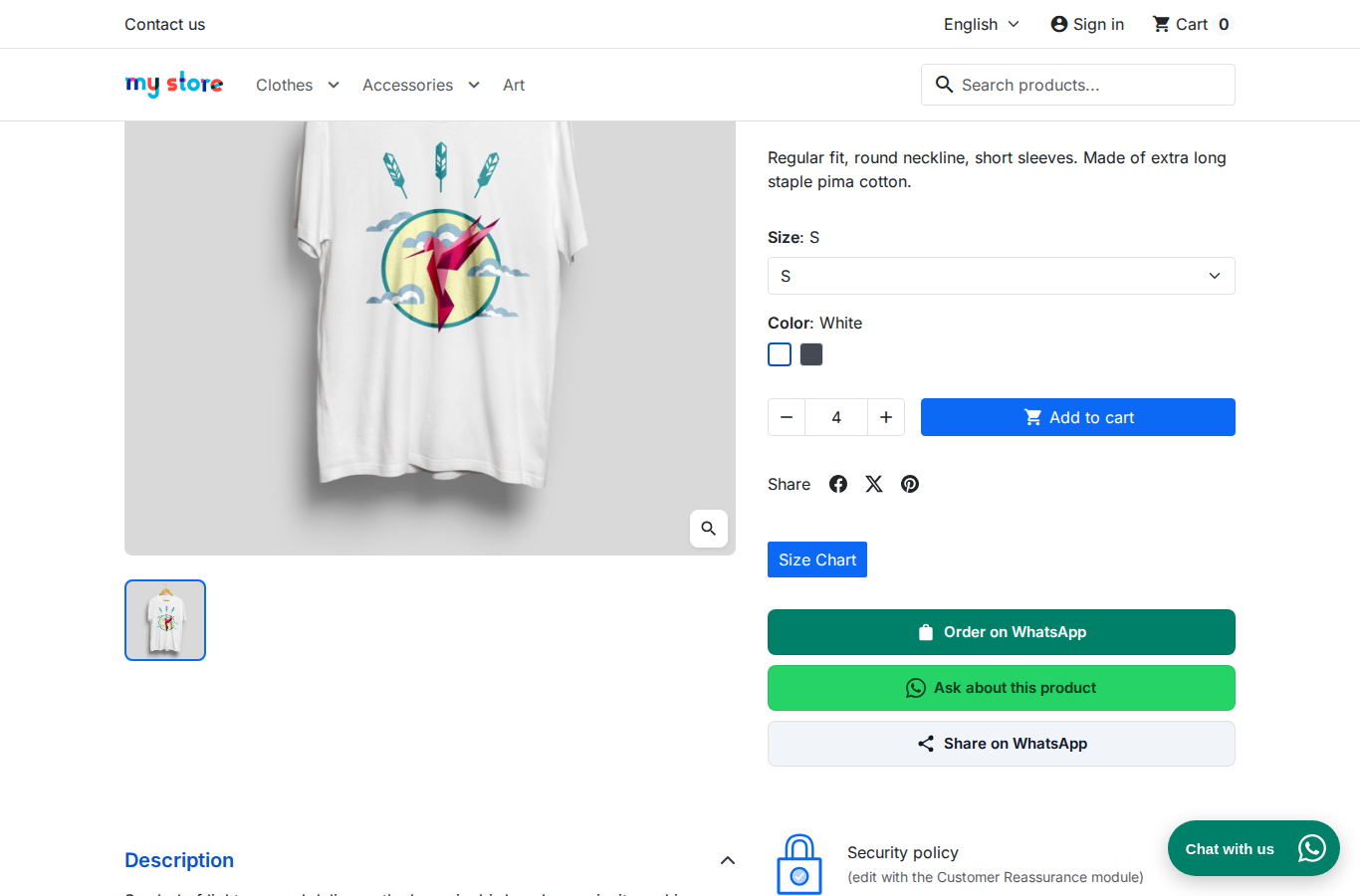
Order on WhatsApp, Ask about this product and Share buttons under Add to cart

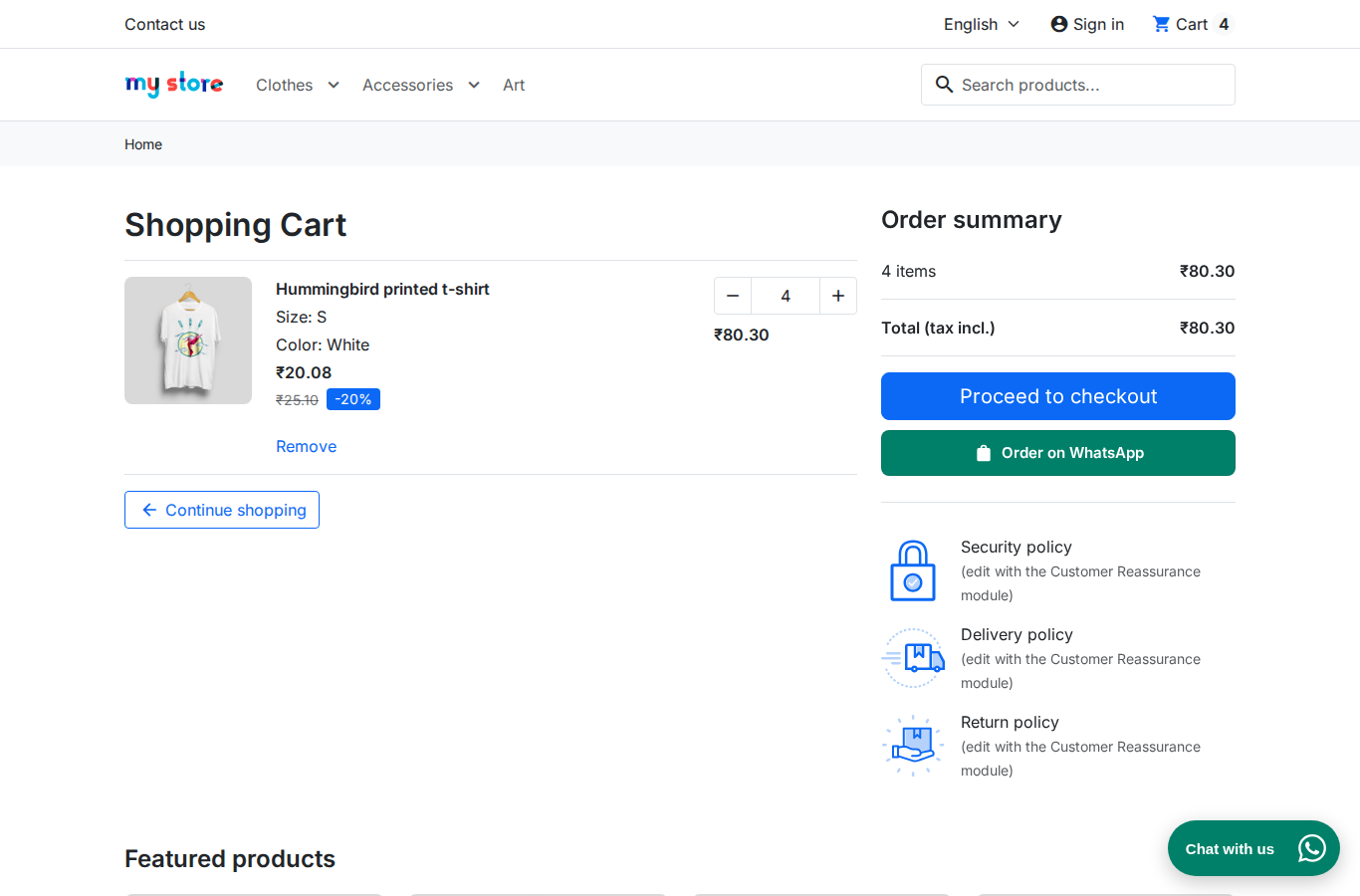
Send the whole cart

An Order on WhatsApp button under Proceed to checkout sends every product with its quantity and price, the total and the cart ID. Find the same cart in your back office under Customers > Shopping Carts.

  • Every line, quantity and price
  • Total in the shop's currency
  • Cart ID to find the cart in your back office
Order on WhatsApp button under Proceed to checkout in the cart

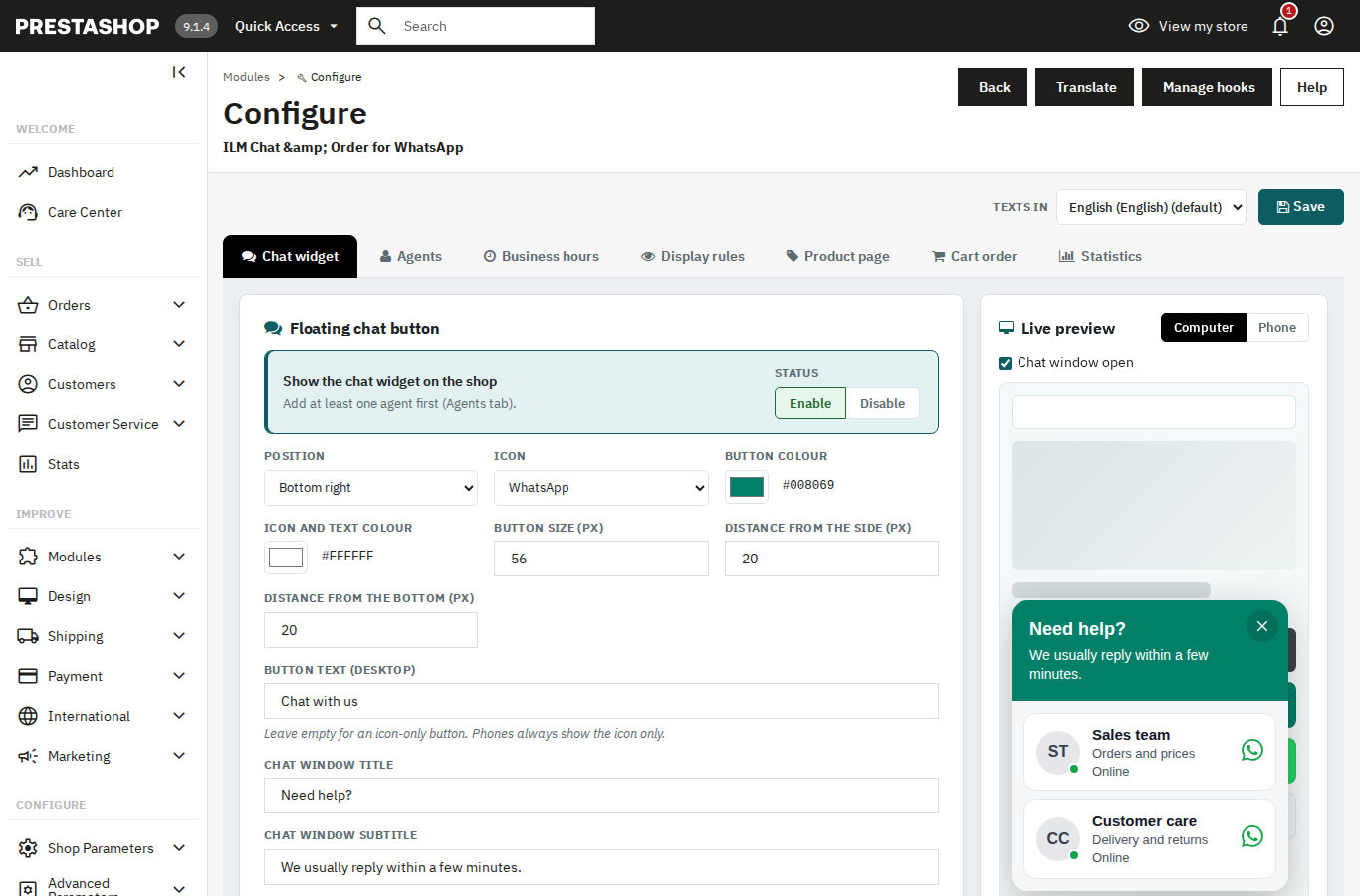
Set it up with a live preview

Every change shows straight away in a preview on a computer or a phone, before you save. The preview uses the same code as your shop, so what you see is what shoppers get.

  • Display rules: page types, devices, products, categories, addresses
  • Business hours per weekday, or per agent
  • Texts in every language of your shop
  • Click statistics without any personal data
Module settings with the live preview

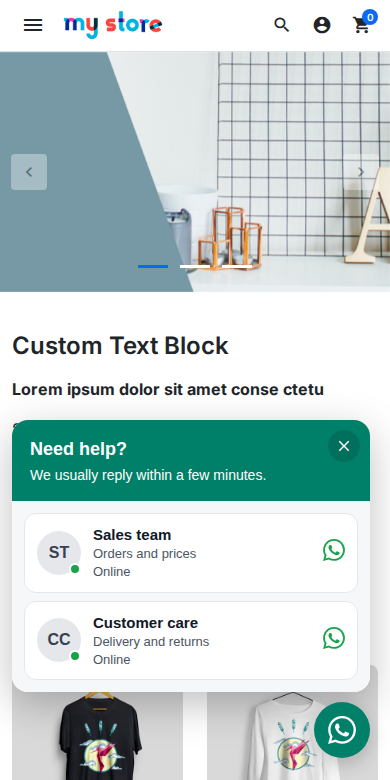
Made for phones

On phones the button shows only the icon, and WhatsApp opens in the app. The widget sits in its own frame, so your theme's styles never break it, and it adds no external fonts or libraries.

  • Opens the WhatsApp app on phones, WhatsApp Web on computers
  • Keyboard and screen reader friendly
  • Small script, loaded after the page
The chat window on a phone

Good to know

  • Free: no licence key, no watermark, no limits on agents or clicks.
  • PrestaShop 1.7.0 to 9.x, with the Classic and Hummingbird themes.
  • No WhatsApp API account: messages open in the shopper's WhatsApp with your text written; you answer from your normal WhatsApp or WhatsApp Business app.
  • Privacy: the module stores no shopper names or phone numbers; clicks are counted per day without personal data.
  • Install: download the zip from your order page and upload it in Modules > Module Manager > Upload a module.
PS Compatibility
1.7.0 – 9.x
PHP Version
PHP 7.1+
License
Free, no licence key
Plugin Version
1.0.0
Last Update
November 2026
Multi-Store
No
PrestaShop Version PHP Version Status
PrestaShop 9.x PHP 8.1 / 8.2 / 8.3 Compatible
PrestaShop 8.x PHP 8.0 / 8.1 / 8.2 Compatible
PrestaShop 1.7.x PHP 7.4 / 8.0 Compatible
PrestaShop 1.6.x PHP 7.x On Request

Need support for an older version? Contact us and we'll help you out.

1

Download the Module

After purchase, go to My Account → Order History and download the .zip file for this module.

2

Upload via Back-Office

In your PrestaShop admin panel, navigate to Modules → Module Manager → Upload a Module and select the downloaded .zip file.

3

Install & Configure

Click Install, then Configure to set up the module settings according to your store's needs.

4

Clear Cache

Go to Advanced Parameters → Performance and click Clear cache to make sure all changes take effect on the front-end.

5

Done!

Visit your store front-end to verify the module is working. For any issues, contact our support team — we respond within 24 hours.

Share

Comments (0)

No customer reviews for the moment.

Need a Custom Plugin?

We build bespoke PrestaShop, Joomla, WordPress and OpenCart modules tailored to your exact requirements.

Loading...
Back to top